YouTube: How to Create, Design, and Make a Logo That Works
Learn youtube how to create a logo and design it for branding—choose tools, make variants, and export files for crisp results on YouTube.
What you need to know first (so your logo actually works)
If you’re searching for youtube how to create a logo, the fastest useful answer is this: create a simple mark and a readable wordmark, test them at tiny sizes, and export multiple file types for different backgrounds. A logo fails most often because it’s too detailed to remain clear in a 64×64 profile image or a 1200×300 banner crop. When your logo stays recognizable at small sizes and on both light and dark backgrounds, you’re already ahead of most creators.
Start by deciding what your logo must do on YouTube specifically: identify you in the channel avatar, remain legible in the channel header area, and still look good on video thumbnails. The practical implication is that you should build at least two variants - an icon-only version and a full version that includes your channel name. This also keeps you from stretching one logo into every use case.
Finally, set expectations for the workflow. You’ll usually spend 1–2 hours concepting and refining, then 1–3 hours creating clean vector shapes, variants, and exports. If you do “design first, test later,” you’ll often need extra iterations once you see the logo at small sizes.
- Goal: recognizable at small sizes and on multiple backgrounds
- Deliverables: icon-only, full logo, light/dark variants, and export files
- Success metric: legibility in a 64×64 preview and thumbnail mock
Plan your logo concept before you touch a design tool
To do youtube how to design a logo well, you need a concept that matches your content. If your channel is educational, clarity beats cleverness; if it’s entertainment, you can lean more stylized, but still avoid dense linework. Write down three attributes your audience should feel - for example: “fast,” “friendly,” “technical,” or “playful.” Those words guide shape choices, spacing, and typography decisions.
Next, pick a simple structure: icon, wordmark, or both. Many successful YouTube brands use both - an icon for the avatar and a combined lockup for headers. Keep the concept scalable: if the icon requires tiny details to make sense, it will likely break down when reduced. A good test is whether you can describe the icon using only 3–5 words.
Then gather a quick competitive reference set. Instead of copying, analyze what’s common in your niche: do other channels use rounded shapes, monograms, real objects, or abstract symbols? You’re looking for spacing patterns and legibility norms - not exact styles. If most top channels rely on minimal icons, you should too, especially if you’re learning youtube how to make logo fundamentals.
- Define 3 audience traits (e.g., “calm,” “expert,” “modern”)
- Choose structure: icon-only, wordmark-only, or icon + wordmark
- Sketch 6–10 rough ideas on paper or a blank canvas
- Select 1–2 directions that remain clear in thumbnail-sized sketches
Create the logo in vector form (the process that prevents blurry results)
When you learn youtube how to create a logo, the most important technical detail is using vector shapes for the core artwork. Vector logos scale cleanly, so you won’t get pixelation when YouTube displays your icon at different sizes. Even if you’re using a beginner-friendly tool, aim to build the logo from shapes (circles, rectangles, paths) rather than text effects or bitmap textures.
If you combine an icon and a name, start with the icon geometry first. Choose a consistent style: either mostly rounded forms or mostly sharp forms, then keep stroke thickness or shape proportions consistent. For typography, pick a font family you can license and that reads well at small sizes - thin or ultra-stylized display fonts often fail in the channel avatar.
Spacing is where logos become “professional” quickly. Ensure the icon has a clear visual center, then align the wordmark baseline and letter spacing so it looks balanced. A practical trick: create a “safe area” preview by temporarily viewing the logo at 64×64. If parts disappear, simplify shapes or increase contrast before you export anything.
| Logo element | Why it matters on YouTube | Quick check |
|---|---|---|
| Icon-only mark | Used in avatar and small overlays | Legible at 64×64 |
| Wordmark/lockup | Used in banners and branding | Looks clean at 600–800px width |
| Light/dark variants | YouTube surfaces vary by theme | Test on both white and near-black backgrounds |
| Consistent stroke/spacing | Makes the brand feel intentional | Zoom to 200% and compare shapes |
Build two variants from the start
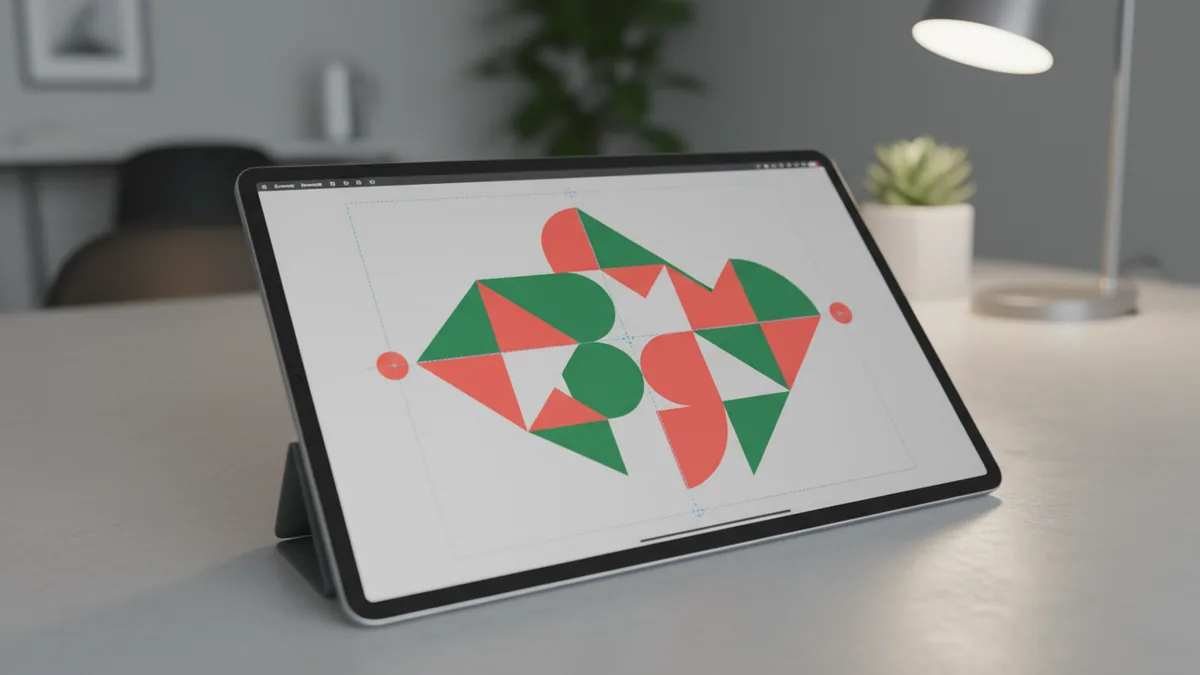
Even if you only plan to publish one logo, create at least two lockups while you’re designing. Variant A is icon-only; Variant B is icon + wordmark. This is especially relevant for youtube how to design a logo workflows because YouTube frequently crops or scales the channel avatar and header differently. If your combined version doesn’t fit, you’ll still have an icon that works.
Also create light and dark versions. A logo that looks great on a white background can become unreadable on a dark header or thumbnail. Instead of relying on “invert colors,” adjust the shapes so the stroke thickness and contrast stay consistent. The result should look intentional, not like an afterthought filter.
Make it look good on YouTube: sizing, cropping, and background tests
Designing for YouTube means testing where your logo will actually appear. For many channels, the avatar is the hardest test because it’s small and circular crops can change the perceived proportions. When you follow youtube how to make logo guidance, treat previews as a requirement, not a bonus. Build mockups for: avatar (small), channel header (wide), and a thumbnail-style crop (mid-size).
Start with a simple export preview loop: reduce the logo to an avatar size and check whether key elements survive. If your icon is a complex silhouette, you may need to simplify it into fewer shapes. If your wordmark is too long, consider a shorter monogram for the avatar and keep the full name for headers.
Next, test backgrounds. Thumbnails vary in brightness, and YouTube’s interface surfaces can change depending on the user’s theme. Create at least two background tests: white/very light and dark/near-black. The logo should maintain legibility without needing to “outline everything” artificially.
- Avatar test: confirm readability in a 64×64 style preview
- Header test: ensure the lockup doesn’t feel stretched or cut off
- Thumbnail test: check contrast and icon clarity in a crop
- Background test: validate light and dark versions look equally crisp
Common YouTube logo mistakes (and how to fix them fast)
One frequent issue is overly detailed icons - tiny cutouts, micro-text, or thin lines that vanish at small sizes. The fix is simplification: reduce the number of shapes, increase stroke thickness, or consolidate negative space. Another issue is typography that looks good large but fails when miniaturized; choose a font that stays readable at small sizes and avoid heavy outlines.
Another mistake is inconsistent alignment between icon and wordmark. If the icon “feels” too large or too small next to the name, the lockup will look amateur even if both parts are good individually. Fix it by aligning optical centers (not just grid centers) and ensuring consistent padding around the icon.
Finally, people often export only one file format. You’ll want multiple formats because different uses require different properties (sharp scaling, transparency support, and editing ability). If you already know youtube how to create a logo involves multiple outputs, you won’t lose time later when you realize you can’t edit or the background doesn’t behave.
Export the files correctly so you can use your logo everywhere
Once your logo is finalized, the export step is where you protect quality. The goal is to have a clean vector master for editing and high-quality raster versions for quick uploads. When you search youtube how to design a logo, many guides skip exports, but exports are what keep your logo crisp. A blurred avatar is usually an export problem, not a design problem.
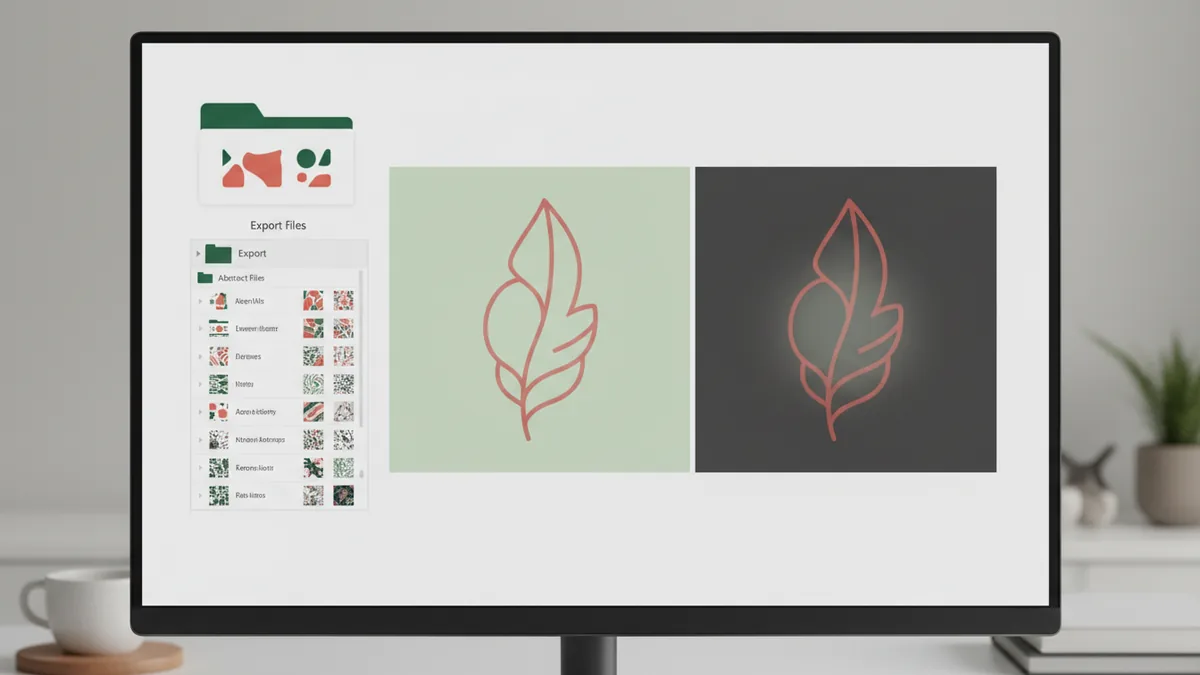
Create a master vector file (so you can edit) and separate public-ready files. Typical set: SVG for vector workflows, PNG for transparent background uses, and a high-resolution PNG for wherever you need crisp raster output. If your logo includes solid fills and no transparency needs, you can also export JPG, but transparency is often useful for thumbnails and overlays.
Also name files consistently. Use a pattern like icon_light, icon_dark, lockup_light, lockup_dark, and master. This makes it easy to grab the right version without opening the source file every time, especially when you’re preparing a batch of thumbnails.
| Use case | Recommended format | What to verify |
|---|---|---|
| Editing later | Vector master (SVG/AI) | No flattened elements you’ll need to change |
| Transparent backgrounds | PNG with transparency | Edges are crisp; no unwanted halos |
| General uploads | High-res PNG | Looks sharp when downscaled |
| Design system sharing | SVG | Stays clean when scaled |
Export sizes that map to real YouTube uses
Pick export dimensions that match how your logo will appear. For avatars, export a square transparent PNG at a few sizes (for example, one for preview and one high-res). For headers and wide lockups, export a wider version so it doesn’t need to be stretched by your editor later.
If you’re preparing thumbnails, export a version sized for design software and keep a separate high-res version for future edits. A good rule: export a “ready-to-use” size you know will work today, plus a larger master raster so you can re-crop without quality loss.
After export, do a final sanity check: open the PNG on both white and dark backgrounds and zoom in on edges. If you see halos, you may need to adjust how your shapes are filled and saved. This is one of those hidden details that makes the difference between a logo that looks sharp and one that looks “almost.”
Refine and iterate: how to get from a first logo to a final brand mark
Learning youtube how to make logo isn’t a one-and-done task. The best results usually come from one or two refinement rounds after you test in real contexts. Start by asking one simple question: is the logo instantly recognizable at small size? If the answer is no, your first iteration should focus on simplifying the icon and improving contrast.
Use feedback strategically. Ask viewers or friends for quick reactions and specific observations: “Can you tell what it is at thumbnail size?” and “Does the icon feel readable or noisy?” Avoid asking people whether they like it aesthetically - at this stage, readability and scalability matter more than taste. This keeps your revisions grounded in YouTube’s real constraints.
As you refine, keep your logo system consistent. Your icon shapes, color palette, and typography choices should all reinforce the same identity. If you change too many things at once, you won’t know what caused improvements or regressions. Instead, adjust one variable per iteration: contrast, spacing, icon detail level, or typography weight.
- Iteration 1: simplify and improve legibility at 64×64
- Iteration 2: tune spacing, alignment, and background contrast
- Iteration 3 (optional): adjust typography weight for small sizes
By the end, you should have a logo package that’s ready for avatar, header, and thumbnail use - without reworking files every time. That’s the practical definition of a good youtube how to create a logo outcome: it’s usable, consistent, and stays sharp where it matters most.
FAQ
- What’s the simplest way to start a YouTube logo design?
- Start with a concept that matches your channel’s content, then sketch 6–10 rough ideas. Choose the direction that stays recognizable when reduced to thumbnail size.
- Do I really need a vector logo for YouTube?
- For best quality, yes. Vector artwork stays crisp when YouTube scales your avatar and header, and it’s easier to edit later.
- How do I test whether my logo will look good in a small avatar?
- Preview your icon at around 64×64 and check whether key shapes and contrast survive. If details disappear, simplify the icon and increase stroke or shape thickness.
- What file types should I export for my YouTube logo?
- Export a vector master (for editing), plus transparent PNGs for overlays and a high-resolution PNG for general use. SVG is also useful for sharing in design workflows.
- How do I handle light and dark backgrounds for a logo?
- Create separate light and dark versions by adjusting fills and contrast. Don’t rely only on color inversion—make sure edges and legibility remain consistent.
- How many iterations does a good logo usually take?
- Most creators benefit from 1–2 refinement rounds after testing real mockups. Focus each round on one problem at a time, like legibility or spacing.